












Post DoE Analysis
Post DoE Analysis provides a comprehensive set of tools to evaluate and interpret experimental results obtained through Design of Experiments (DoE) methodologies. With this module, users can easily identify the most influential factors, explore the impact of individual variables, and study interactions between them and optimize responses based on one or multiple objectives. Available visualization options include:
- Pareto Chart for ranking and visualizing the relative importance of effects.
- Main Effects Plots show how changes in a single factor influence the response and test whether the relationship between the dependent variable and each factor is linear.
- Interaction Plots to illustrate how two factors jointly affect the outcome and test whether there is interaction between two factors.
- Combined Main Effects + Interaction Plots for a holistic view of factor influences.
- Desirability & Response Profiles to visualize how predicted responses and composite desirability change across factor ranges. These profiles support multi-objective optimization by revealing trade-offs between responses and highlighting factor settings that maximize overall desirability.
The tool supports both factorial/screening designs and response surface designs, making it adaptable to a wide variety of experimental setups. For screening and factorial designs only, users may choose to include center points in the design. This does not mean the addition of extra experimental points in the design but rather that center points already included in the design will be handled differently. This is done by adding an extra 0/1 indicator variable, where a value of 1 identifies center points. Including this variable allows the algorithm to capture a portion of unexplained variability that is not accounted for by the main effects and interaction terms. This indicator is not included in the Pareto plots or in the main effect and interaction plots; it is only used internally to improve the explanation of variability. In contrast, for response surface designs, this option is not available, since the inclusion of curvature and quadratic terms already incorporates the information provided by center points.
Pareto Analysis
Pareto Analysis is used to visualize the relative importance of model terms (main effects, quadratic terms and interactions) and to identify which factors have a statistically significant impact on the response. The construction of the plot depends on whether the error term in the model has available degrees of freedom.
-
Error with Degrees of Freedom In this case, a Pareto Plot of standardized effects is created. Each effect is divided by its estimated standard error to obtain a standardized effect size. The plot ranks these standardized effects in descending order of magnitude, making it easy to identify the most influential terms. A significance line is drawn to indicate the threshold value above which an effect is considered statistically significant, based on the Level of Significance specified by the user.
-
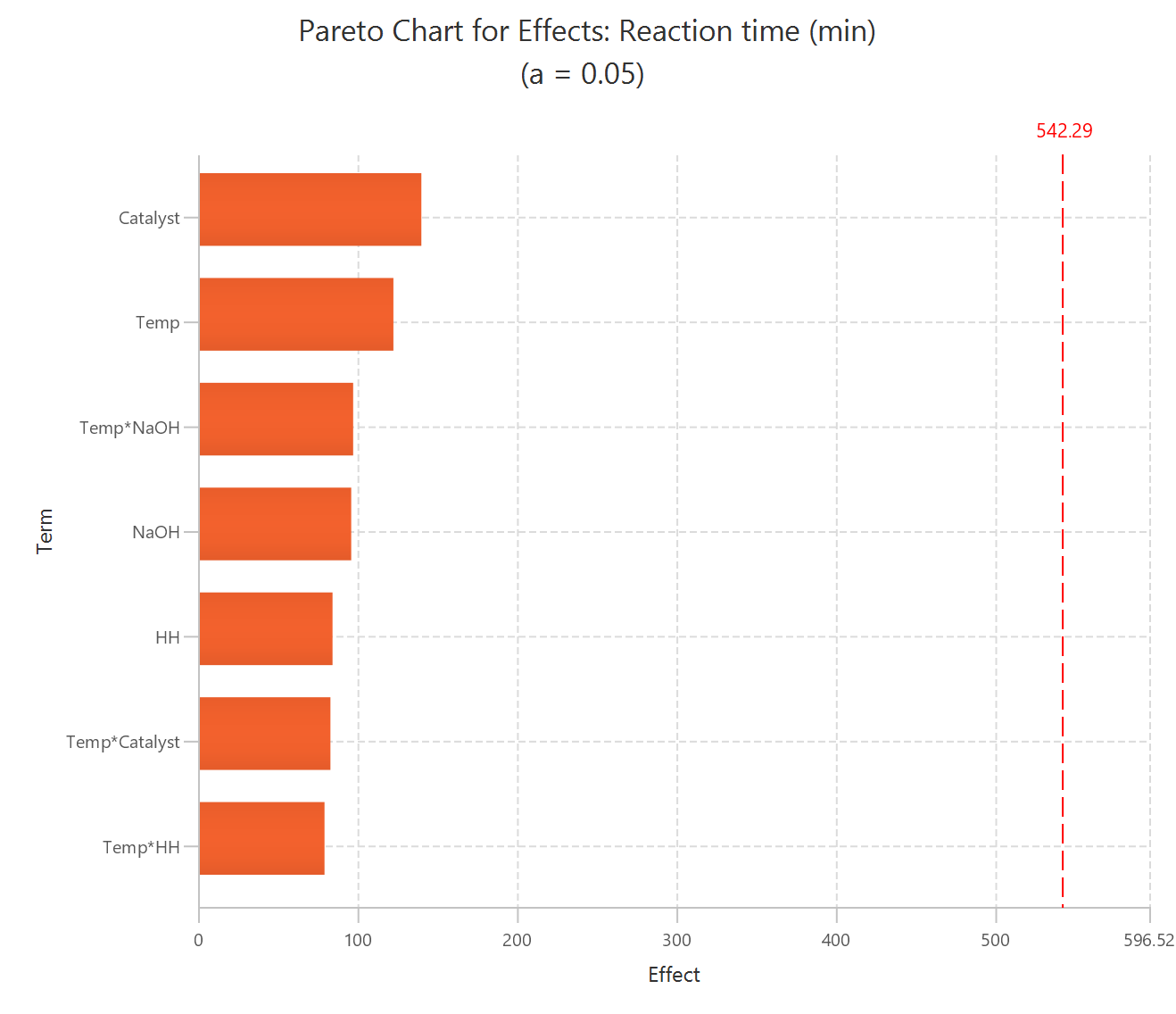
Error with No Degrees of Freedom When no residual degrees of freedom are available, standard errors for the effects cannot be estimated directly. In this case, a Pareto Plot of raw effects is generated, showing the absolute effect size for each term. To assess significance, Lenth’s Pseudo Standard Error (PSE) is calculated and used together with a t-distribution, where the degrees of freedom are defined as the number of effects divided by three. The resulting threshold is then applied to determine significance, again using the Level of Significance specified by the user.
Use the Pareto Analysis tool by browsing in the top ribbon:
| DOE \(\rightarrow\) Post DoE Analysis \(\rightarrow\) Pareto Analysis |
Input
All variables must be specified in the datasheet. The input to the algorithm consists of the results of a Design of Experiments (DoE) method, with the addition of the response calculated for each experimental run. The response variable must be strictly numerical. Experimental factors may be numerical or categorical. Categorical factors are permitted only when they contain exactly two levels. Additionally, categorical factors can only be included when the model does not contain quadratic terms. The blocking variable can be either numeric or categorical. Each row corresponds to a single observation from the experiment.
Configuration
| Dependent Variable | Select the column that corresponds to values of the dependent variable. |
| Analysis Type | Select the desired analysis type for the analysis. Available options include: Main Effects, Main Effects + Two-Factor, Main Effects + Two Factor + Three Factor, Main Effects + Quadratic, Main Effects + Two-Factor + Quadratic, Main Effects + Two Factor + Three Factor + Quadratic. For screening/factorial designs, it is recommended not to include quadratic terms, while for response surface designs, quadratic terms should typically be included. If there are categorical factors in the analysis then quadratic factors cannot be selected. |
| Level Of Significance | Specify the level of significance for the analysis. Values should range from 0 to 1 with the default value being 0.05. |
| Factors/Covariates/Excluded Columns | Select manually the columns that correspond to factors and the columns that correspond to covariates through the dialog window: Use the buttons to move columns between the Factors and Covariates list and Excluded Columns list. Single-arrow buttons will move all selected columns and double-arrow buttons will move all columns. At least one factor column should be specified. |
| DOE type | Select whether you have performed a Factorial/Screening or a Response Surface Design. If categorical factors are selected the only acceptable option is Factorial/Screening. |
| Include Center Points | If you have performed a Factorial/Screening design, select whether to include center points in the analysis. |
| Include Blocks | Select whether to include a blocking term in the fitted model. Blocks are used when experimental runs were performed under different batches, days, operators, machines, or other known conditions that may introduce systematic variation. Including blocks helps adjust the model for this variation, so the effects of the selected factors are estimated more accurately. |
| Blocking Variable | Select the column that identifies the block membership of each experimental run. This column should contain the block labels, such as batch number, day, operator, or experimental group. The blocking variable is only available when Include Blocks is selected. |
Output
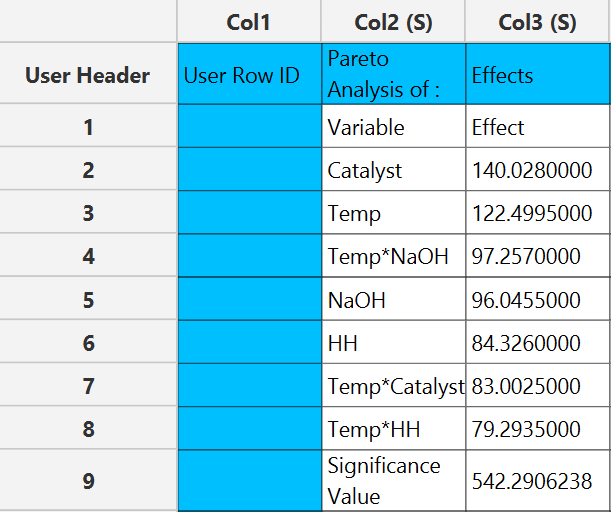
The output spreadsheet contains the same table of effects in descending order. In addition, a pop-up window displays the Pareto chart, where a significance line is shown based on the user-specified level of significance.
Example
Input
In the input datasheet minimum requirement is to specify two columns, one factor and one dependent variable, as shown below.

Configuration
- Select
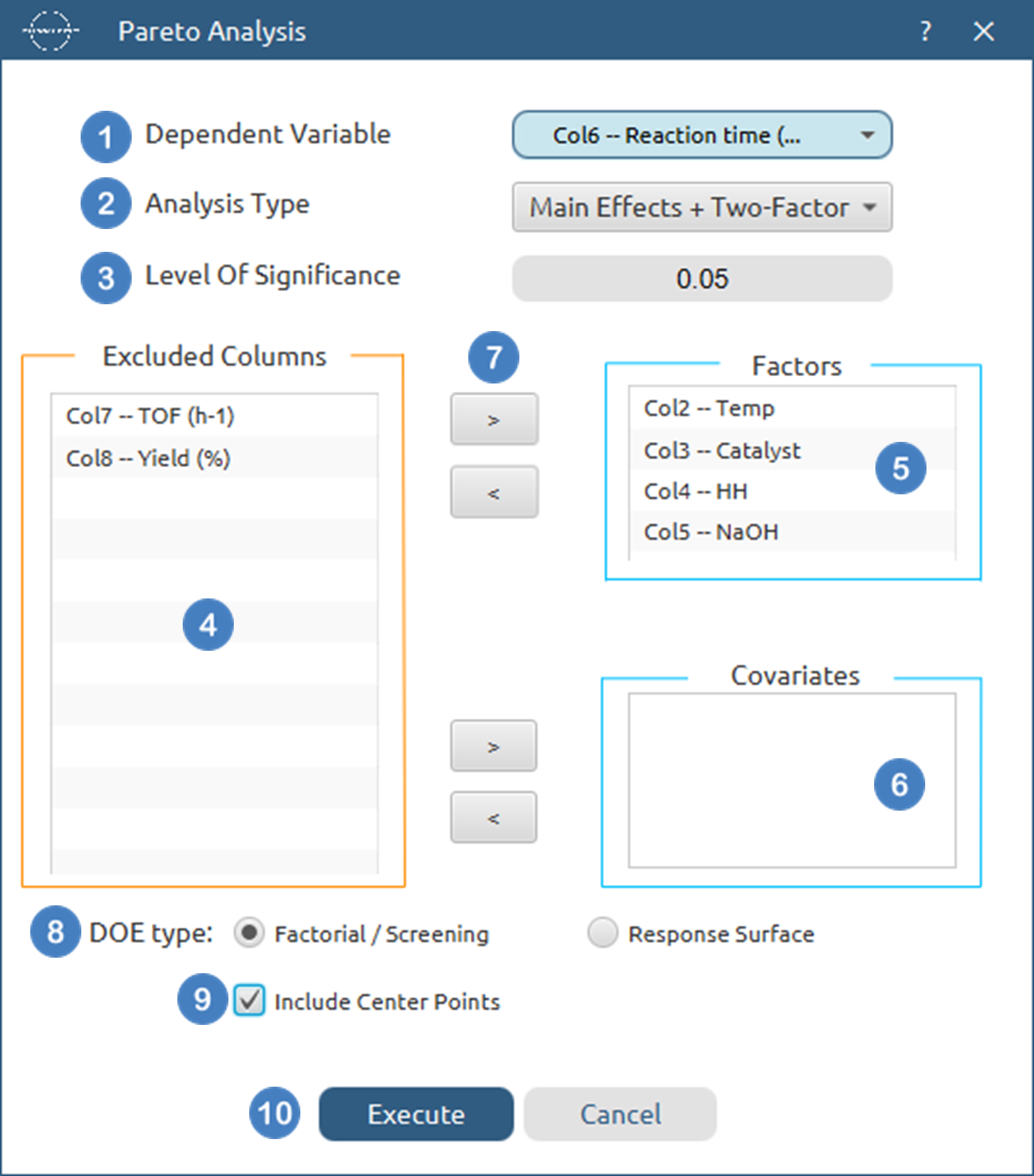
DOE→Post DoE Analysis→Pareto Analysis. - Select the
Dependent Variable[1] from the list of available options. This column should only contain numerical values. - Select the
Analysis Type[2] from the list of available options :Main Effects,Main Effects+Quadratic,Main Effects + Two Factor,Main Effects + Two Factor + Quadratic,Main Effects + Two Factor + Three Factor,Main Effects + Two Factor + Three Factor + Quadratic - Specify the
Level Of Significance[3] used to calculate the significance threshold. Default value is 0.05. - Select the columns by clicking on the arrow buttons [7] and moving columns between the
Excluded Columns[4] , theFactors[5] andCovariates[6] lists. - Select whether the DoE[8] method used before this step was a
Factorial/Screeningor aResponse Surfacemethod. - If the
Factorial/Screeningoption is selected, select/tick toInclude Center Points[9]. - Select/tick to
Include Blocks[10]. - If the
Include Blocksoption is selected, select theBlocking Variable[11] from the list of available options. This column can contain either numerical or categorical data. - Click on the
Executebutton [12] to perform Pareto Analysis
Output
The effects of each term in the model are presented in the output spreadsheet in descending order and the pareto chart is shown in a separate window.
Factorial Plot Analysis
The Main Effects and Interaction Plots differ in construction depending on the type of experimental design chosen: Screening/Factorial or Response Surface.
- Screening / Factorial Designs
-
Main Effects Plots: For each factor, the response is evaluated at its two extreme levels (low and high) while all other factors are fixed at their center values. A line is drawn between these two fitted points to represent the main effect of that factor. The center point is also plotted to assess whether it aligns with the expected linear relationship.
-
Interaction Plots: For a given interaction (e.g., Factor A × Factor B), two lines are constructed: One with Factor B set at its low level. Another with Factor B set at its high level. For each line, the response is fitted at Factor A = low and Factor A = high. The center point is also included to check consistency with the modeled trend.
-
-
Response Surface Designs
-
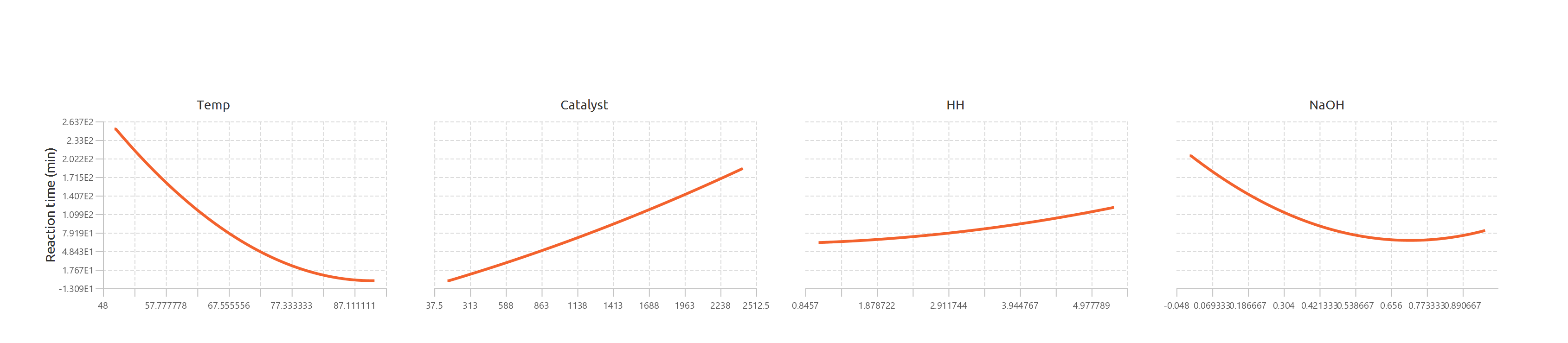
Main Effects Plots: The fitted second-order model (including quadratic terms) is used to compute the response as each factor varies across its range. All other factors are fixed at their center values. This produces a smooth second-order curve showing the factor’s main effect on the response.
-
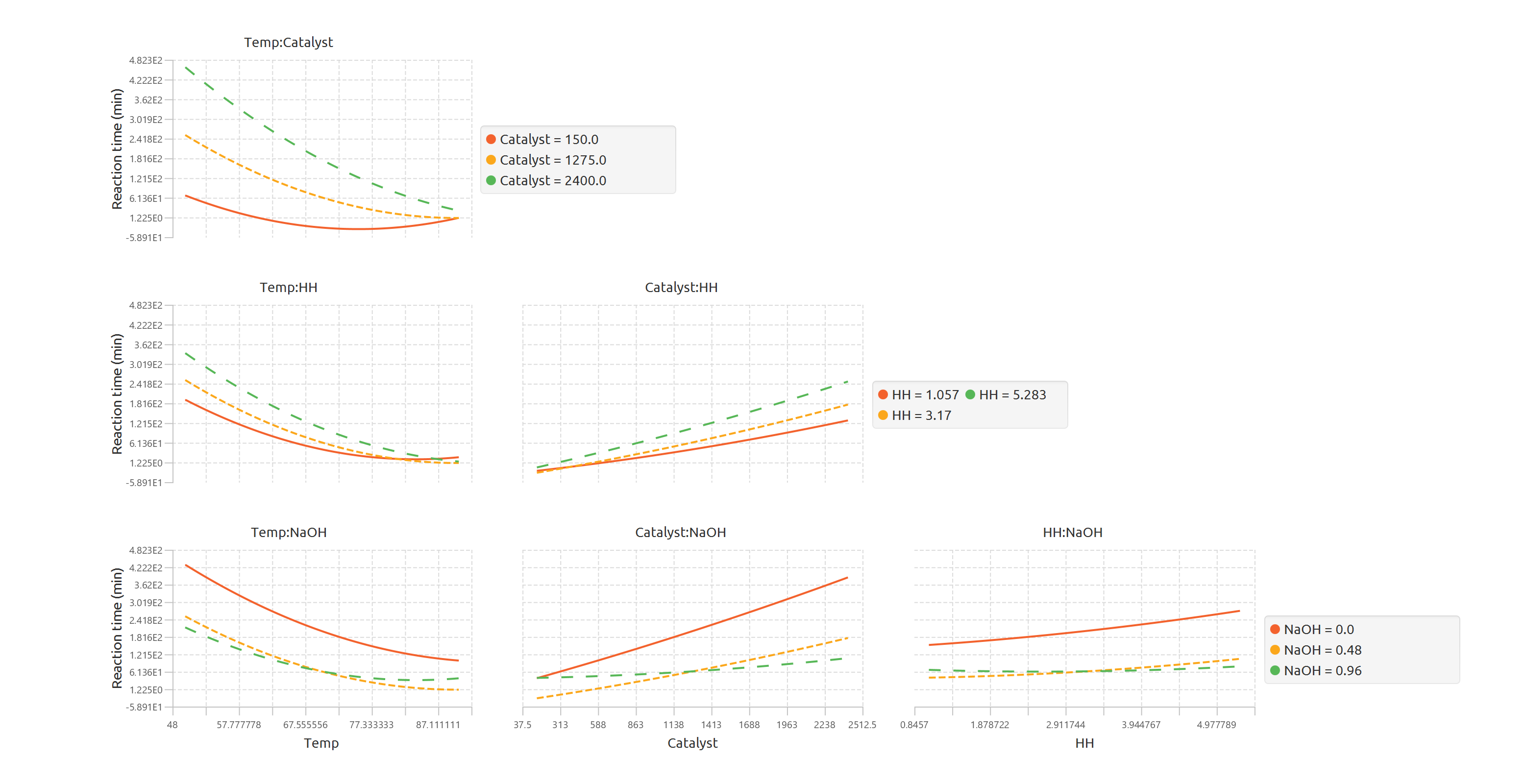
Interaction Plots: For two interacting factors, the second-order model is again used. One factor is varied across its range, while the second factor is fixed at three different levels: low, center, and high. This results in three separate curves, allowing the user to visualize how the interaction modifies the relationship between the factors and the response.
-
When generating main effects and interaction plots, it is essential to use the Specify Factor Values option to correctly define the low and high levels of each factor. These values determine how the plots are constructed and must be chosen carefully. Some constraints apply:
- The specified low value cannot be less than the minimum observed value of the factor in the dataset.
- The specified high value cannot be greater than the maximum observed value of the factor in the dataset.
- Additionally, the low value must always be strictly less than the high value.
Use the Factorial Plot Analysis tool by browsing in the top ribbon:
| DOE \(\rightarrow\) Post DoE Analysis \(\rightarrow\) Factorial Plot Analysis |
Input
All variables must be specified in the datasheet. The input to the algorithm consists of the results of a Design of Experiments (DoE) method, with the addition of the response calculated for each experimental run. The response variable must be strictly numerical. Experimental factors may be numerical or categorical. Categorical factors are permitted only when they contain exactly two levels. Additionally, categorical factors can only be included when the model does not contain quadratic terms. The blocking variable can be either numeric or categorical. Each row corresponds to a single observation from the experiment.
Configuration
| Dependent Variable | Select the column that corresponds to values of the dependent variable. |
| Analysis Type | Select the desired analysis type for the analysis. Available options include: Main Effects, Main Effects + Two-Factor, Main Effects + Two Factor + Three Factor, Main Effects + Quadratic, Main Effects + Two-Factor + Quadratic, Main Effects + Two Factor + Three Factor + Quadratic, Full Factorial. For screening/factorial designs, it is recommended not to include quadratic terms, while for response surface designs, quadratic terms should typically be included. If there are categorical factors in the analysis then quadratic factors cannot be selected. |
| Factors/Covariates/Excluded Columns | Select manually the columns that correspond to factors and the columns that correspond to covariates through the dialog window: Use the buttons to move columns between the Factors and Covariates list and Excluded Columns list. Single-arrow buttons will move all selected columns and double-arrow buttons will move all columns. At least one factor column should be specified. |
| Specify Factor Values | Specify the low and high value for each factor to ensure the plots are generated correctly. By default, these values are initialized to the minimum and maximum observed values of each variable. |
| DOE type | Select whether you have performed a Factorial/Screening or a Response Surface Design. If categorical factors are selected the only acceptable option is Factorial/Screening. |
| Include Center Points | If you have performed a Factorial/Screening design, select whether to include center points in the analysis. |
| Include Blocks | Select whether to include a blocking term in the fitted model. Blocks are used when experimental runs were performed under different batches, days, operators, machines, or other known conditions that may introduce systematic variation. Including blocks helps adjust the model for this variation, so the effects of the selected factors are estimated more accurately. |
| Blocking Variable | Select the column that identifies the block membership of each experimental run. This column should contain the block labels, such as batch number, day, operator, or experimental group. The blocking variable is only available when Include Blocks is selected. |
Output
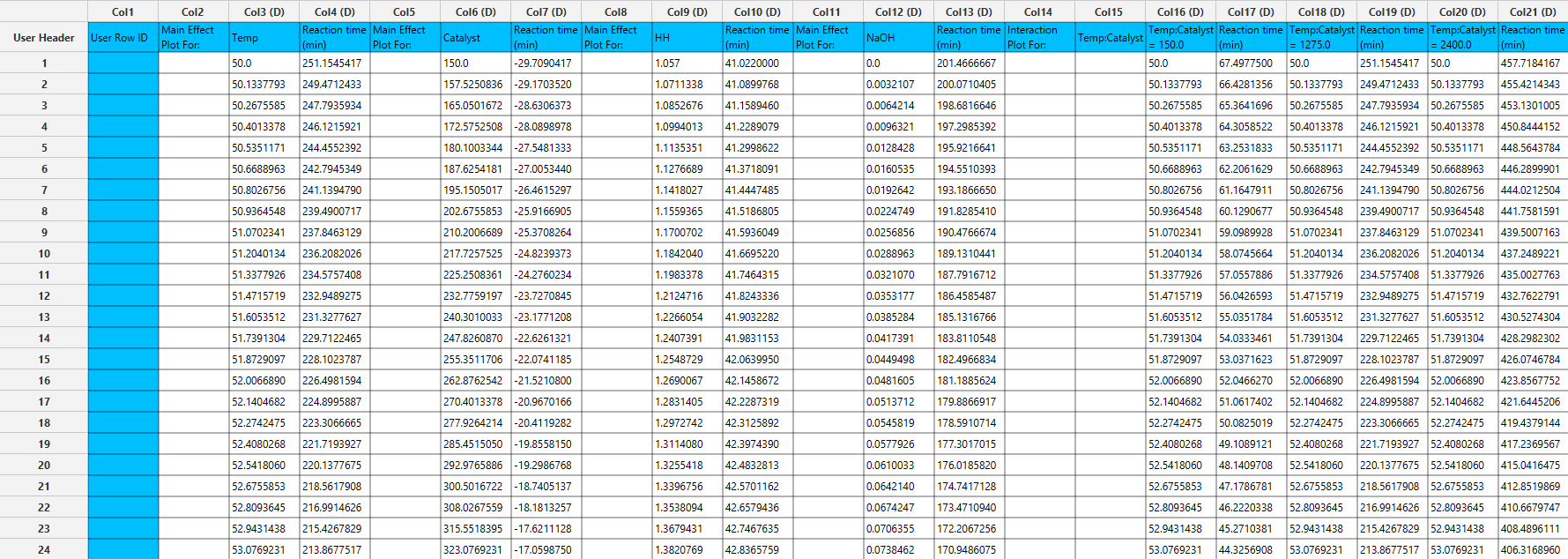
The output spreadsheet contains the fitted response values used to generate the curves. For each curve, 300 data points are provided, allowing precise plotting and replication of the results. A separate pop-up window is generated for each plot:
- Main Effects Plots: One plot is displayed per factor, showing the fitted response across the specified low and high values, with the center point included when available. The y axis is shared across all main effect plots.
- Interaction Plots: One plot is displayed per estimable interaction. Each plot contains three fitted curves corresponding to the second factor of the interaction set at low, center, and high values. The spreadsheet includes the corresponding data points for each curve, as shown in the interaction plot output table.
Example
Input
In the input datasheet minimum requirement is to specify two columns, one factor and one dependent variable, as shown below.

Configuration
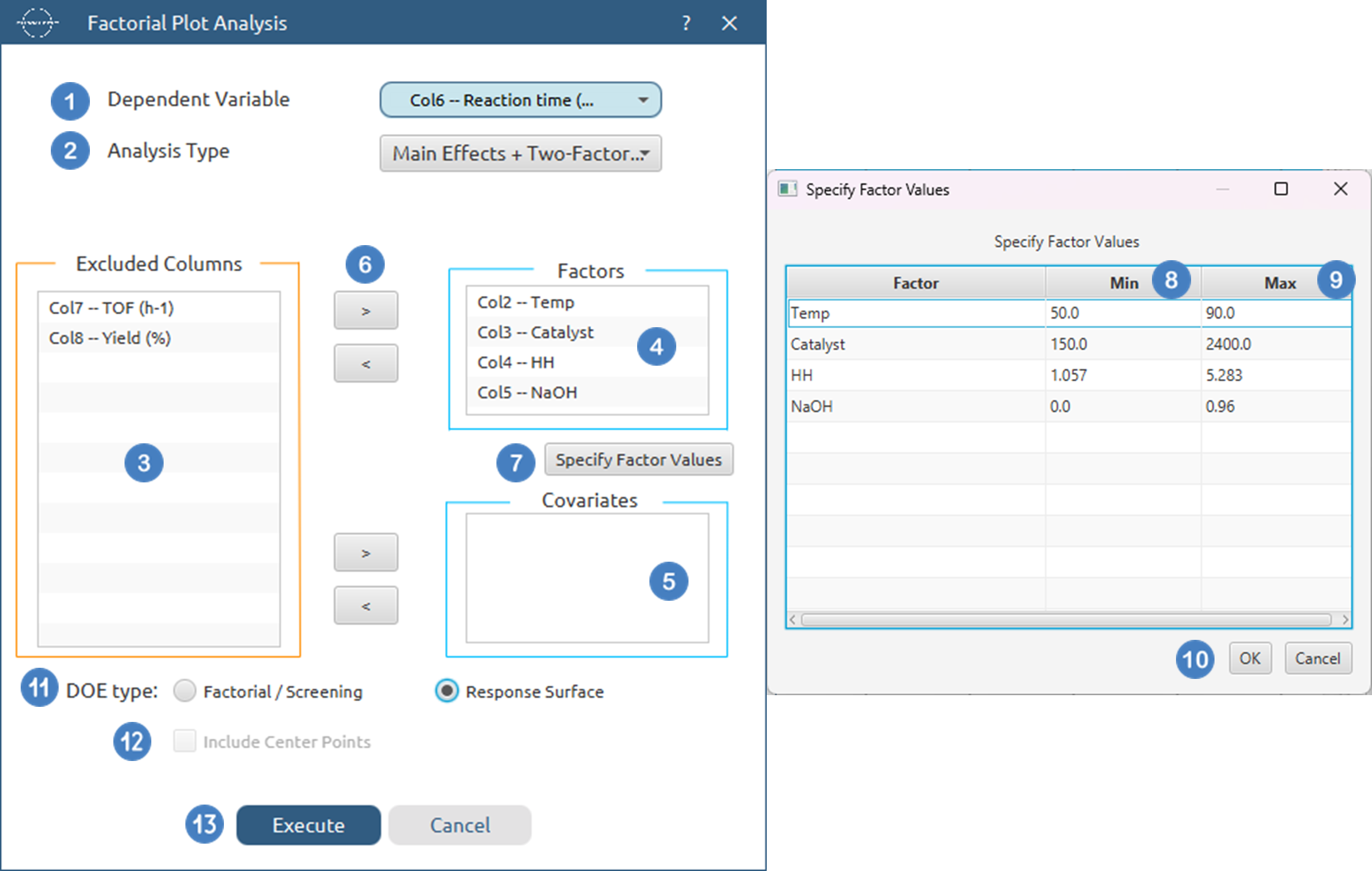
- Select
DOE→Post DoE Analysis→Factorial Plot Analysis. - Select the
Dependent Variabl[1] from the list of available options. This column should only contain numerical values. - Select the
Analysis Type[2] from the list of available options :Main Effects,Main Effects+Quadratic,Main Effects + Two Factor,Main Effects + Two Factor + Quadratic,Main Effects + Two Factor + Three Factor,Main Effects + Two Factor + Three Factor + Quadratic - Select the columns by clicking on the arrow buttons [6] and moving columns between the
Excluded Columns[3] , theFactors[4] andCovariates[5] lists. - Click on
Specify Factor Values[7] to specify theMin[8] andMax[9] value for each numerical factor, theLow level[10] andHigh level[11] value for each categorical factor. Once they are specified click onOK[12]. - Select whether the DoE[13] method used before this step was a
Factorial/Screeningor aResponse Surfacemethod. - If the
Factorial/Screeningoption is selected, select/tick toInclude Center Points[14]. - Select/tick to
Include Blocks[15]. - If the
Include Blocksoption is selected, select theBlocking Variable[16] from the list of available options. This column can contain either numerical or categorical data. - Click on the
Executebutton [17] to perform Factorial Plot Analysis
Output
The data points for each produced plot are shown in the output spreadsheet and the main effect and interaction plots are shown in separate windows.
Multi-Objective Optimization
Multi-Objective Optimization is used to determine factor settings that simultaneously optimize multiple responses. When responses have competing goals (for example, maximizing yield while minimizing reaction time), the algorithm converts each response into a desirability function and combines them into a single composite desirability score. The optimal solution corresponds to the factor settings that maximize this composite desirability.
Isalos supports two optimization strategies:
- Continuous optimization, where factor settings are searched across the modeled design space.
- Discrete optimization, where optimization is restricted to the observed factor levels present in the dataset. This option ensures that recommended settings correspond to experimentally tested conditions and may be preferred when interpolation between levels is not desired.
Users may also constrain the optimization domain by specifying allowable ranges for each factor, and/or fixing factors to specific values to evaluate constrained operating conditions. To compute predictions used during optimization, users must select the model structure to be fitted. For screening and factorial designs, simpler models are typically preferred, while response surface designs generally require quadratic terms to capture curvature.
For each response, users define an optimization objective:
- Maximize — increases the response toward higher values.
- Minimize — drives the response toward lower values.
- Target — seeks a specified value while penalizing deviations.
Each response is transformed into an individual desirability value ranging from 0 (undesirable) to 1 (fully desirable). The shape and influence of each desirability function are controlled by two parameters:
- Scale controls how quickly desirability changes as the response moves away from its goal. Higher scale values create a steeper penalty near limits or targets, while lower values produce a more gradual transition.
- Importance defines the relative priority of each response in the composite desirability calculation. Responses with higher importance exert greater influence on the optimization result.
Together, these settings allow users to balance competing objectives and tailor the optimization to process priorities.
For each predicted response, the model provides both confidence intervals (CI) and prediction intervals (PI) to quantify uncertainty. A confidence interval describes the range within which the true mean response is expected to lie at the specified factor settings and confidence level (e.g., 95%). It reflects uncertainty in estimating the model’s mean prediction. In contrast, a prediction interval represents the range within which a future individual observation is expected to fall under the same conditions. Because prediction intervals account for both model uncertainty and inherent experimental variability, they are always wider than confidence intervals.
Use the Multi-Objective Optimization tool by browsing in the top ribbon:
| DOE \(\rightarrow\) Post DoE Analysis \(\rightarrow\) Multi-Objective Optimization |
Input
All variables must be specified in the datasheet. The input to the algorithm consists of the results of a Design of Experiments (DoE) method, with the addition of the response variables calculated for each experimental run. Response variables must be strictly numerical. Experimental factors may be numerical or categorical. Categorical factors are permitted only when they contain exactly two levels. Additionally, categorical factors can only be included when the model does not contain quadratic terms. The blocking variable can be either numeric or categorical. Each row corresponds to a single observation from the experiment.
Configuration
| Analysis Type | Select the desired analysis type for the analysis. Available options include: Main Effects, Main Effects + Two-Factor, Main Effects + Two Factor + Three Factor, Main Effects + Quadratic, Main Effects + Two-Factor + Quadratic, Main Effects + Two Factor + Three Factor + Quadratic, Full Factorial. For screening/factorial designs, it is recommended not to include quadratic terms, while for response surface designs, quadratic terms should typically be included. If there are categorical factors in the analysis then quadratic factors cannot be selected. |
| Confidence Level | Specify the confidence level for the analysis. Values should range from 0 to 100 with the default value being 95 |
| Include Blocks | Select whether to include a blocking term in the fitted model. Blocks are used when experimental runs were performed under different batches, days, operators, machines, or other known conditions that may introduce systematic variation. Including blocks helps adjust the model for this variation, so the effects of the selected factors are estimated more accurately. |
| Blocking Variable | Select the column that identifies the block membership of each experimental run. This column should contain the block labels, such as batch number, day, operator, or experimental group. The blocking variable is only available when Include Blocks is selected. |
| Factors/Dependent Variables/Excluded Columns | Select manually the columns that correspond to factors and the columns that correspond to dependent variables through the dialog window: Use the buttons to move columns between the Factors and Dependent Variables list and Excluded Columns list. At least one factor column and one Dependent Variable Column should be specified. |
| Specify Factor Values | Specify the low and high value for each factor to ensure the plots are generated correctly. By default, these values are initialized to the minimum and maximum observed values of each variable. Optionally specify constraints to fix factors to a specific value within the allowed range. |
| Specify Dependent Variable Ranges | Specify the minimum and maximum acceptable value for each dependent variable to correctly set objective goals and compute individual desirabilities. By default, these values are initialized to the minimum and maximum observed values of each variable. |
| Dependent Variable Settings | For each dependent variable added, specify the goal (Minimize/ Maximize/ Target), the target value if the Target option is selected, the scale and the importance of the dependent variable. The allowed range for scale is [0.01,10] and for importance it is [1,5]. |
| Optimize on the Discretized Space (Only factor values that appear in the dataset will be considered) | Use this option to enable discretized optimization, to restrict the optimization to the observed factor levels present in the dataset. |
Output
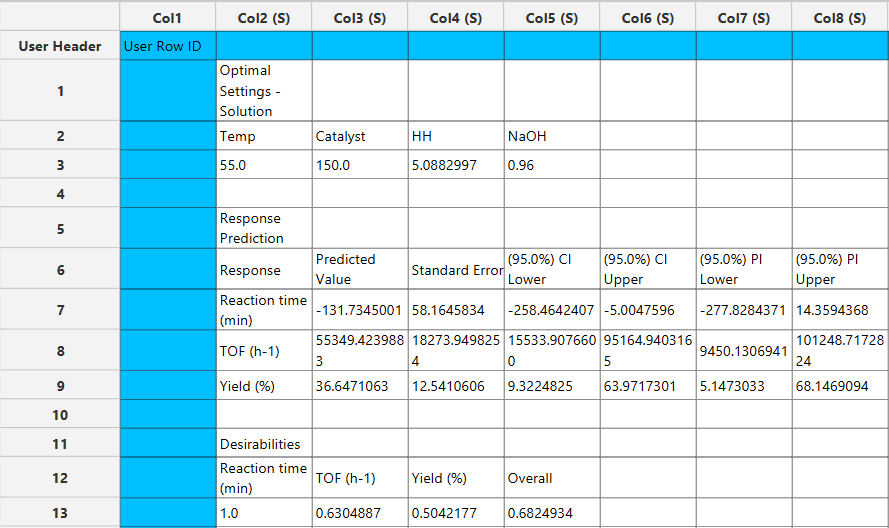
The output spreadsheet reports the optimal factor settings identified by the optimization routine, along with the predicted values for each response at those settings. For each response, the table includes the predicted value, standard error, confidence intervals, and prediction intervals. Individual desirability values are shown for every response, together with the overall composite desirability score used to rank the solution.
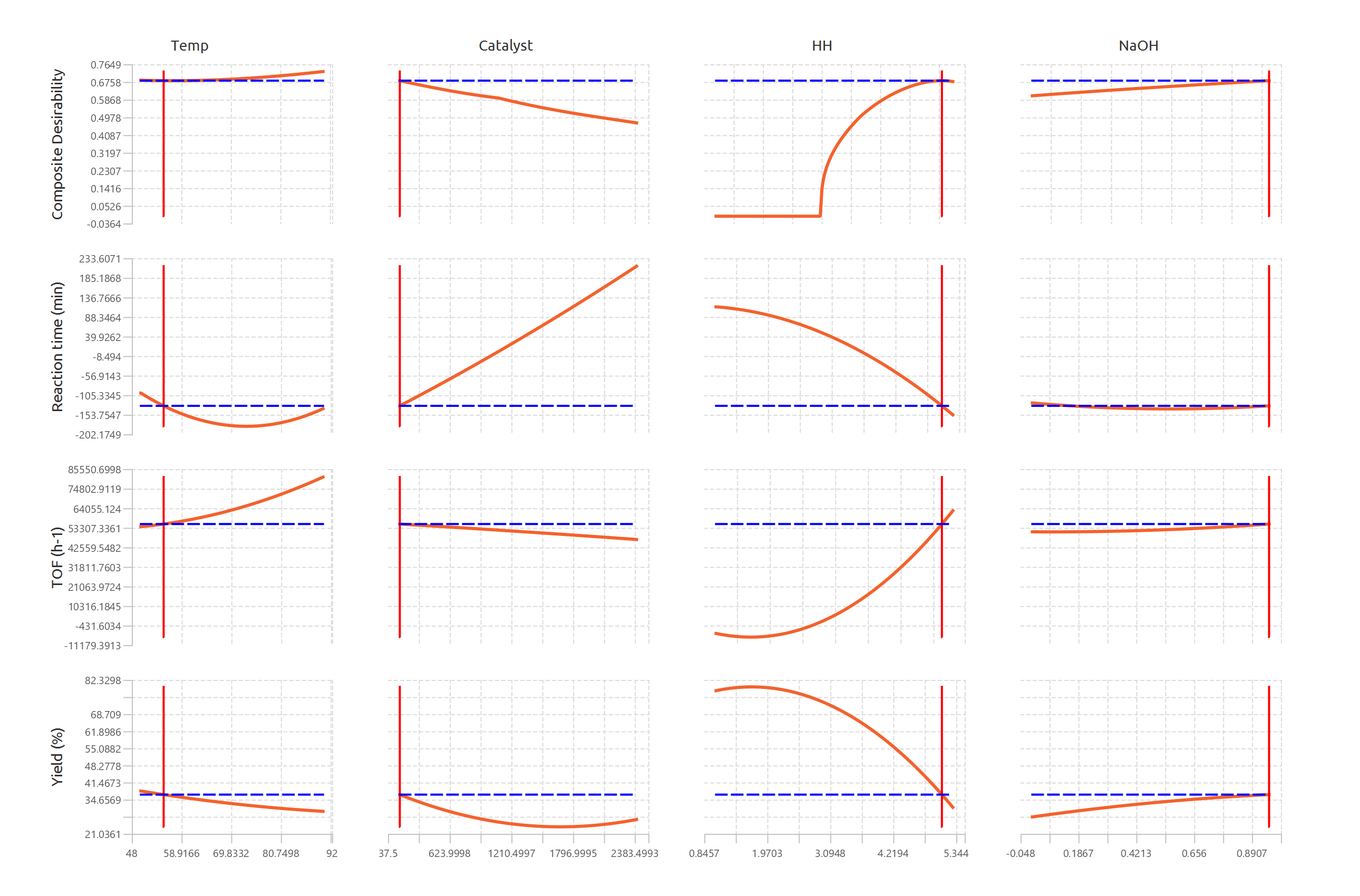
In addition, a pop-up window displays the Desirability & Response Profiles, illustrating how composite desirability and each predicted response vary across the range of each factor while other factors are held constant. Vertical reference lines indicate the optimal factor settings, and horizontal reference lines denote the predicted response or desirability values at the optimum, enabling visual assessment of trade-offs and sensitivity.
Example
Input
In the input datasheet minimum requirement is to specify two columns, one factor and one dependent variable, as shown below.
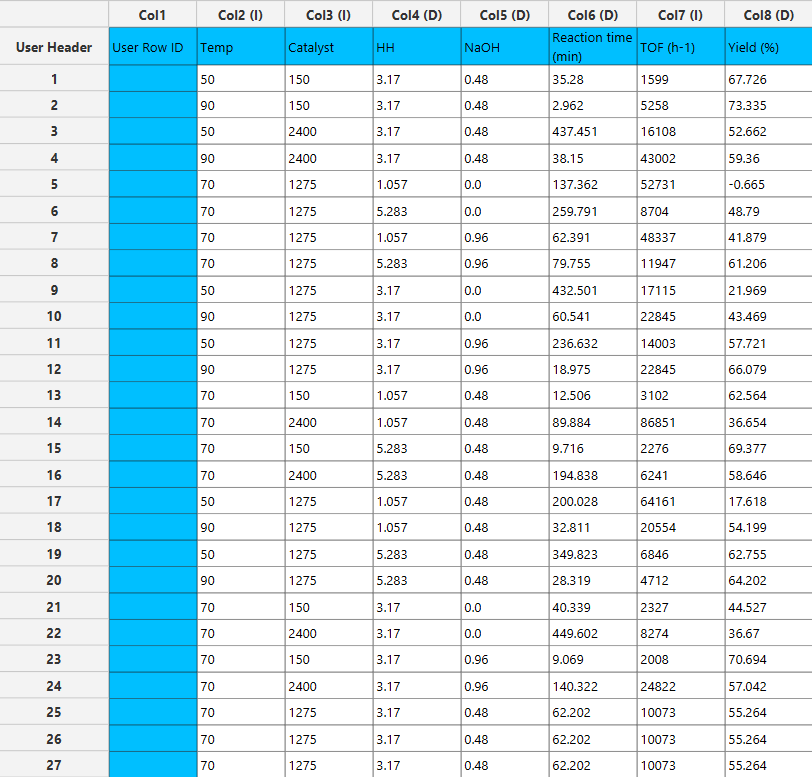
Configuration
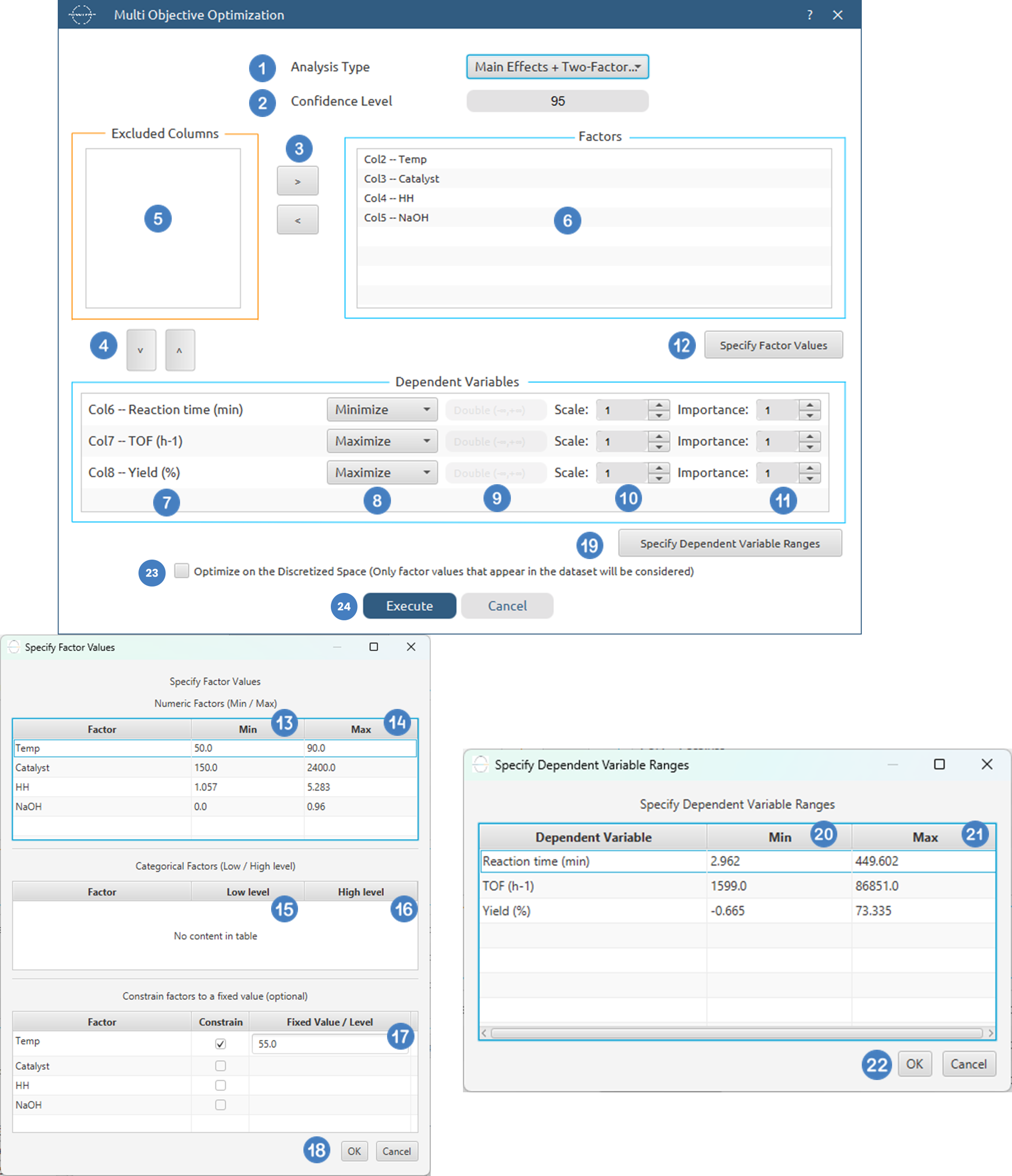
- Select
DOE→Post DoE Analysis→Multi-Objective Optimization. - Select the
Analysis Type[1] from the list of available options :Main Effects,Main Effects+Quadratic,Main Effects + Two Factor,Main Effects + Two Factor + Quadratic,Main Effects + Two Factor + Three Factor,Main Effects + Two Factor + Three Factor + Quadratic,Full Factorial - Specify the
Significance Level[2] used to calculate the confidence intervals. Default value is 95. - Select/tick to
Include Blocks[3]. - If the
Include Blocksoption is selected, select theBlocking Variable[4] from the list of available options. This column can contain either numerical or categorical data. - Select the columns by clicking on the arrow buttons [5],[6] and moving columns between the
Excluded Columns[7] , theFactors[8] andDependent Variables[9] lists. - Specify the
Goal[10], theTarget Value[11] if the Target goal is selected, theScale[12] and theImportance[13] of each dependent variable. - Click on
Specify Factor Values[14] to specify theMin[15] andMax[16] value for each numerical factor, theLow level[17] andHigh level[18] value for each categorical factor and optionally constrain factors to aFixed Value[19]. Once they are specified click onOK[20]. - Click on
Specify Dependent Variable Ranges[21] to specify theMin[22] andMax[23] value for each dependent variable . Once they are specified click onOK[24]. - Click on
Optimize on the Discretized Space (Only factor values that appear in the dataset will be considered)[25] to only optimize on the discretized space. - Click on the
Executebutton [26] to perform Multi-Objective optimization
Output
The optimal factor settings, the predicted values and the individual and overall desirabilities are presented in the output spreadsheet and the Desirability & Response Profiles are shown in a separate window.
Mixture Analysis
Mixture Analysis is used to model the relationship between a response variable and the proportions of the components in a mixture and optionally any process variables present in the experiment. Unlike ordinary regression, mixture experiments are subject to the constraint
where \(x_i\) represents the proportion of component \(i\).
Because of this dependency, standard polynomial regression models cannot be used directly. Instead, Mixture Analysis employs Scheffé canonical polynomials, which are specifically designed for mixture experiments.
The software supports Linear, Quadratic, Special Cubic, Full Cubic, Special Quartic and Full Quartic mixture models. Binary process variables may also be included to investigate whether external operating conditions influence the mixture response.
Supported Mixture Models
Linear Model
The linear model estimates only the individual contribution of each component.
where:
- \(x_i\) = proportion of component \(i\).
- \(\beta_i\) = expected response when the mixture consists entirely of component \(i\).
Quadratic Model
The quadratic model additionally captures pairwise blending effects between components.
The interaction coefficient \(\beta_{ij}\) describes whether the combination of components i and j produces a response different from what would be expected based on their individual effects alone.
Special Cubic Model
The special cubic model includes three-component blending effects.
The coefficients \(\beta_{ijk}\) represent interactions among three components simultaneously.
Full Cubic Model
The full cubic model extends the special cubic model by including asymmetry terms.
The terms \(x_ix_j(x_i-x_j)\) allow the model to distinguish situations where component i dominates component j from situations where the reverse occurs.
Special Quartic Model
The special quartic model introduces fourth-order blending effects.
Full Quartic Model
The full quartic model is the most flexible mixture model available and includes all quartic terms.
Process Variables
Binary process variables may be included in the analysis. Categorical process variables are internally coded using effect coding:
For each process variable, interaction terms with all mixture model terms are automatically generated. This allows the software to determine whether the process condition changes the effect of individual components or component combinations.
For example, if temperature is included as a process variable T, interaction terms such as \(x_A T, x_Ax_BT\) may be added to the model.
Inverse Terms
Optionally, inverse mixture terms may be included:
These terms can be useful when the response increases rapidly as the proportion of a component approaches zero.
Inverse terms cannot be estimated when any component contains zero values.
Model Estimation
The model is fitted using ordinary least squares regression.
The parameter estimates are obtained by solving
where:
- \(X\) is the design matrix
- \(y\) is the response vector
Terms that are linearly dependent due to the mixture constraint are automatically detected and removed from the model.
Variance Inflation Factor (VIF)
The Variance Inflation Factor measures the degree of multicollinearity among the model terms.
For each predictor, an auxiliary regression is fitted where the predictor is regressed against all remaining predictors.
The coefficient of determination from this auxiliary model is \(R_i^2\). The VIF is then calculated as:
Interpreatation:
| VIF | Interpretation |
| 1 | No collinearity |
| 1-5 | Mild collinearity |
| 5-10 | Moderate collinearity |
| >10 | Severe collinearity |
Large VIF values indicate that a model term is highly correlated with other terms and its coefficient may be unstable.
Handling Non-Estimable Terms
Because mixture models are subject to the sum-to-one constraint certain model terms may become perfectly collinear and therefore cannot be estimated.
The software automatically identifies these terms using collinearity checks and removes them from the analysis. Any excluded terms are reported to the user as warnings.
Use the Mixture Analysis tool by browsing in the top ribbon:
| DOE \(\rightarrow\) Post DoE Analysis \(\rightarrow\) Mixture Analysis |
Input
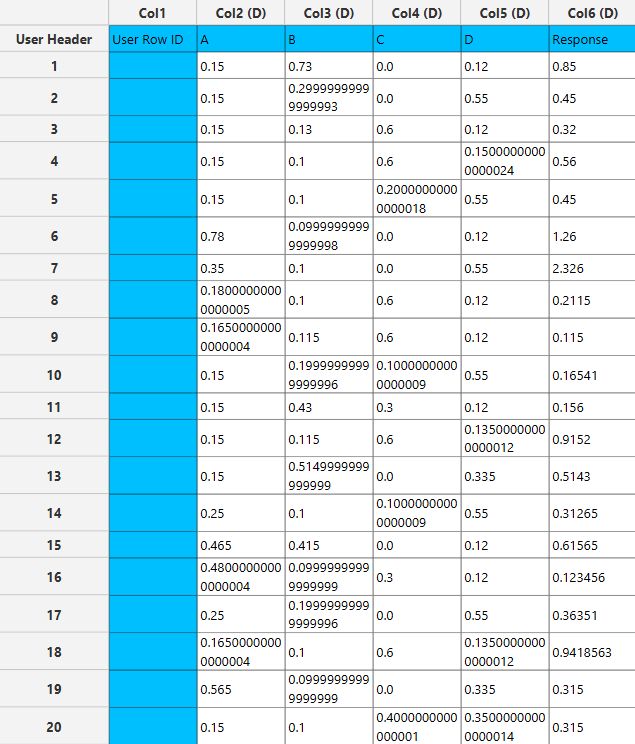
All variables must be specified in the datasheet. The input to the algorithm consists of the results of a Mixture Design of Experiment (DoE) method, with the addition of the response calculated for each experimental run. The response variable must be strictly numerical. Experimental factors/ Components must also be numerical while process variables can be either numerical or cateforical and should contain exactly two levels.
Configuration
| Dependent Variable | Select the column that corresponds to values of the dependent variable. |
| Analysis Type | Select the desired analysis type for the analysis. Available options include: Linear, Quadratic, Special Cubic, Full Cubic, Special Quartic, Full Quartic. |
| Include inverse component terms | Use this option to include inverse component terms. This option is only allowed when no component has a zero value in the input data. |
| Confidence Level(%) | Specify the confidence level for the analysis. Values should range from 0 to 100 with the default value being 95. |
| Components/Process Variables/Excluded Columns | Select manually the columns that correspond to components and the columns that correspond to process variables through the dialog window: Use the buttons to move columns between the Components and Process Variables list and Excluded Columns list. Single-arrow buttons will move all selected columns and double-arrow buttons will move all columns. At least two Component column should be specified. Process Variables must be binary. |
| Specify Process Variables Values | Use this buttton to specify the reference level for each process variable, that will internally be encoded as -1. If this option is not modified, then the last level for each variable will automatically be chosen. |
Output
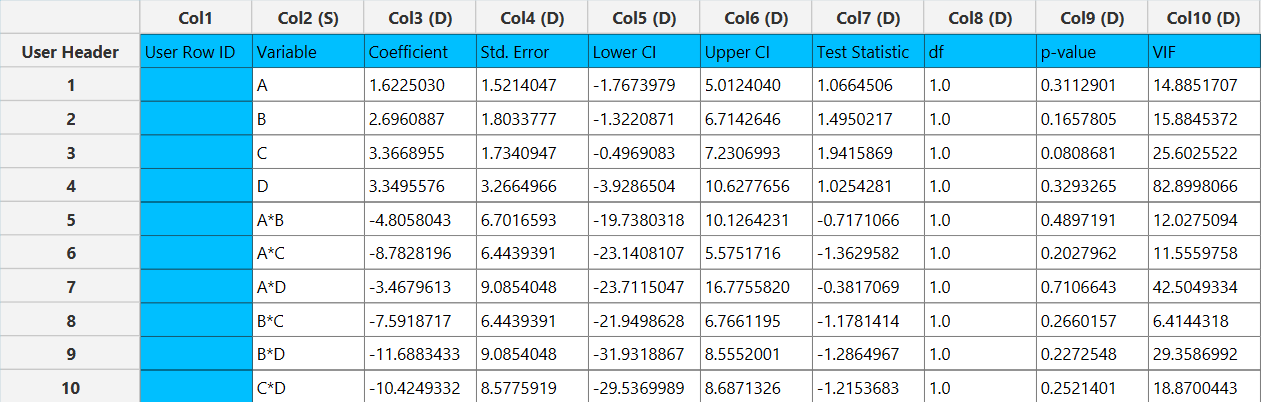
The output spreadsheet contains the parameter estimate table with the following information.
- Variable: Model term being estimated
- Coefficient: Estimated regression coefficient
- Std Error: Standard error of the coefficient
- Lower CI: Lower confidence interval limit
- Upper CI: Upper confidence interval limit
- Test Statistic: Student’s t-statistic
- df: Degrees of freedom used in the test
- p-value: Significance level for the coefficient
- VIF: Variance Inflation Factor
Example
Input
In the input datasheet minimum requirement is to specify three columns, two components and one dependent variable, as shown below.
Configuration
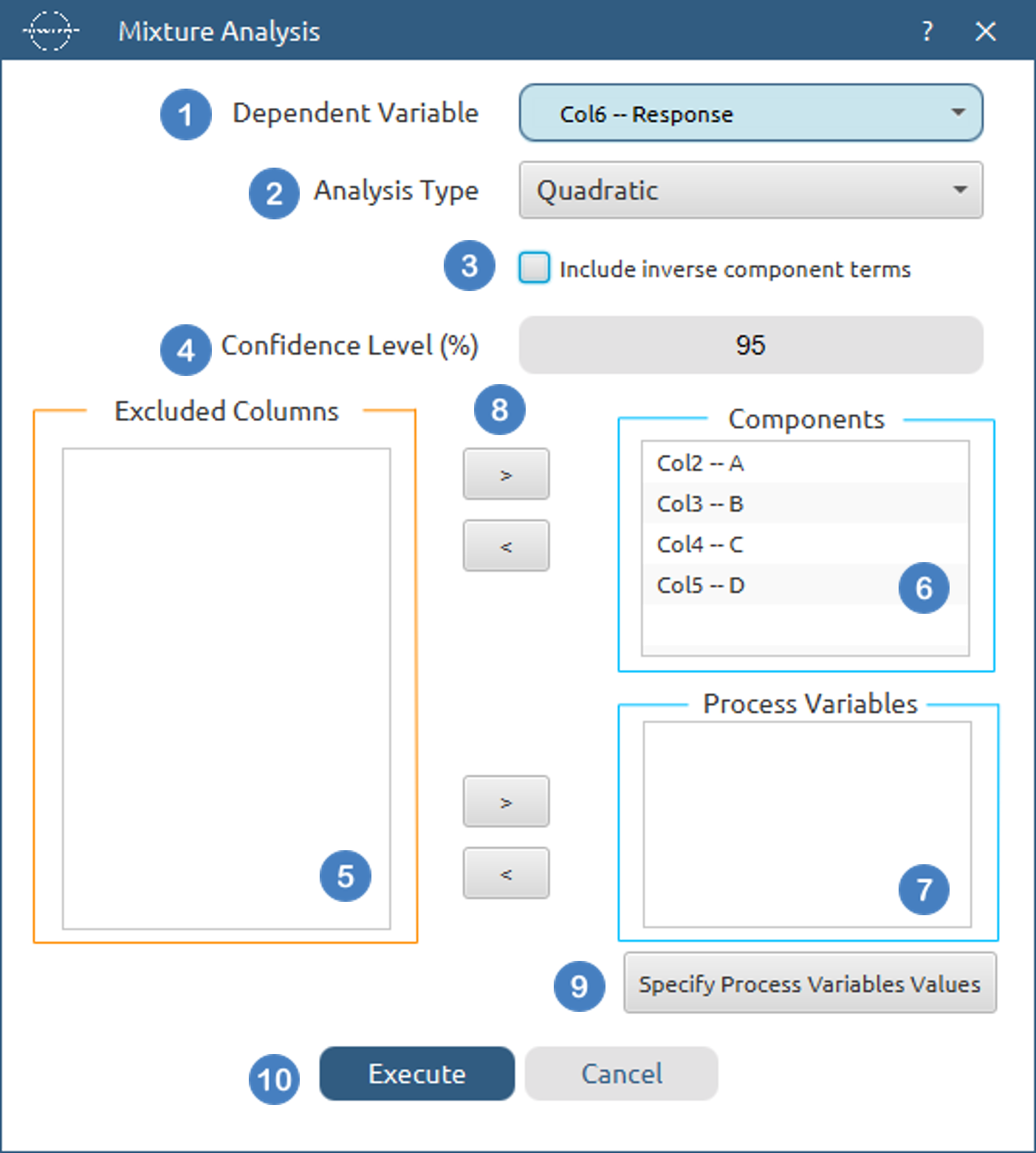
- Select
DOE→Post DoE Analysis→Mixture Analysis. - Select the
Dependent Variable[1] from the list of available options. This column should only contain numerical values. - Select the
Analysis Type[2] from the list of available options :Linear,Quadratic,Special Qubic,Full Cubic,Special Quartic,Full Quartic - Select/tic to
Include inverse proportion terms[3] in the analysis. To be able to use this option, no zero values should be present in the input for any component. - Specify the
Confidence Level (%)[4] used to calculate confidence intervals. Default value is 0.95. - Select the columns by clicking on the arrow buttons [7] and moving columns between the
Excluded Columns[5] , theComponents[6] andProcess Variables[7] lists. - Optionally
Specify Process Variables Values[9]. - Click on the
Executebutton [10] to perform Mixture Analysis
Output
The parameter estimates table with all information about the estimated coefficients is shown in the output spreadsheet.
Post-Robust Parameter Analysis
Post Robust Analysis is used to analyse the results of a Robust Parameter Design (Taguchi) experiment.
The objective of robust design is not only to optimise the average response, but also to minimise the effect of uncontrollable sources of variation. To achieve this, experimental factors are divided into:
- Control Factors : which can be adjusted by the experimenter.
- Noise Factors : which represent sources of variability that cannot be controlled during normal operation.
The analysis evaluates how the control factors influence the response mean, variability and robustness.
Isalos supports modelling of:
- Mean Response
- Standard Deviation
- Logarithm of the Standard Deviation
- Signal-to-Noise Ratio (SNR)
Each selected response is analysed independently using a linear model.
Mean Model
The Mean Model investigates how the control factors influence the average value of the response.
For each combination of control factor levels, the mean response is calculated across all noise factor settings.
where:
- \(y_i\) = observed response
- \(n\) = number of observations associated with the control factor combination
This model is useful when the primary objective is to maximise or minimise the average response.
Standard Deviation Model
The Standard Deviation Model evaluates how the control factors influence response variability.
For each control factor combination, the standard deviation is calculated across all noise factor settings.
Smaller standard deviation values indicate greater robustness to noise factors.
Log(Standard Deviation) Model
The Log(Standard Deviation) Model analyses the logarithm of the standard deviation.
This transformation is commonly used when variability changes multiplicatively rather than additively.
The logarithmic transformation often stabilises variance and improves the suitability of linear modelling.
Signal-to-Noise Ratio (SNR)
The Signal-to-Noise Ratio combines information about both the mean response and its variability into a single performance metric.
Higher SNR values indicate more robust performance.
The following SNR definitions are supported.
Larger is Better
Used when the response should be maximised.
Smaller is Better
Used when the response should be minimised.
Nominal is Best
Used when the response should be as close as possible to a target value.
This formulation rewards a large mean response relative to its variability.
Nominal is Best (Adjusted)
An alternative formulation that adjusts for sample size effects while balancing accuracy and variability.
Nominal is Best (Variance Only)
This formulation evaluates robustness based exclusively on variability.
This option is useful when the mean response is already acceptable and the objective is solely to reduce variation.
Model Estimation
For each selected response, a linear regression model is fitted using ordinary least squares.
where:
- \(X\) = design matrix
- \(y\) = response vector
- \(\hat{\beta}\) = vector of estimated coefficients The resulting model can be used to identify which control factors have the greatest influence on the selected robustness metric.
Analysis of Variance (ANOVA)
An Analysis of Variance table is produced for every fitted model.
The ANOVA table partitions the variation in the response into:
- Variation explained by the model
- Residual variation
- Total variation F-tests are used to determine whether the effects included in the model explain a statistically significant proportion of the observed variation.
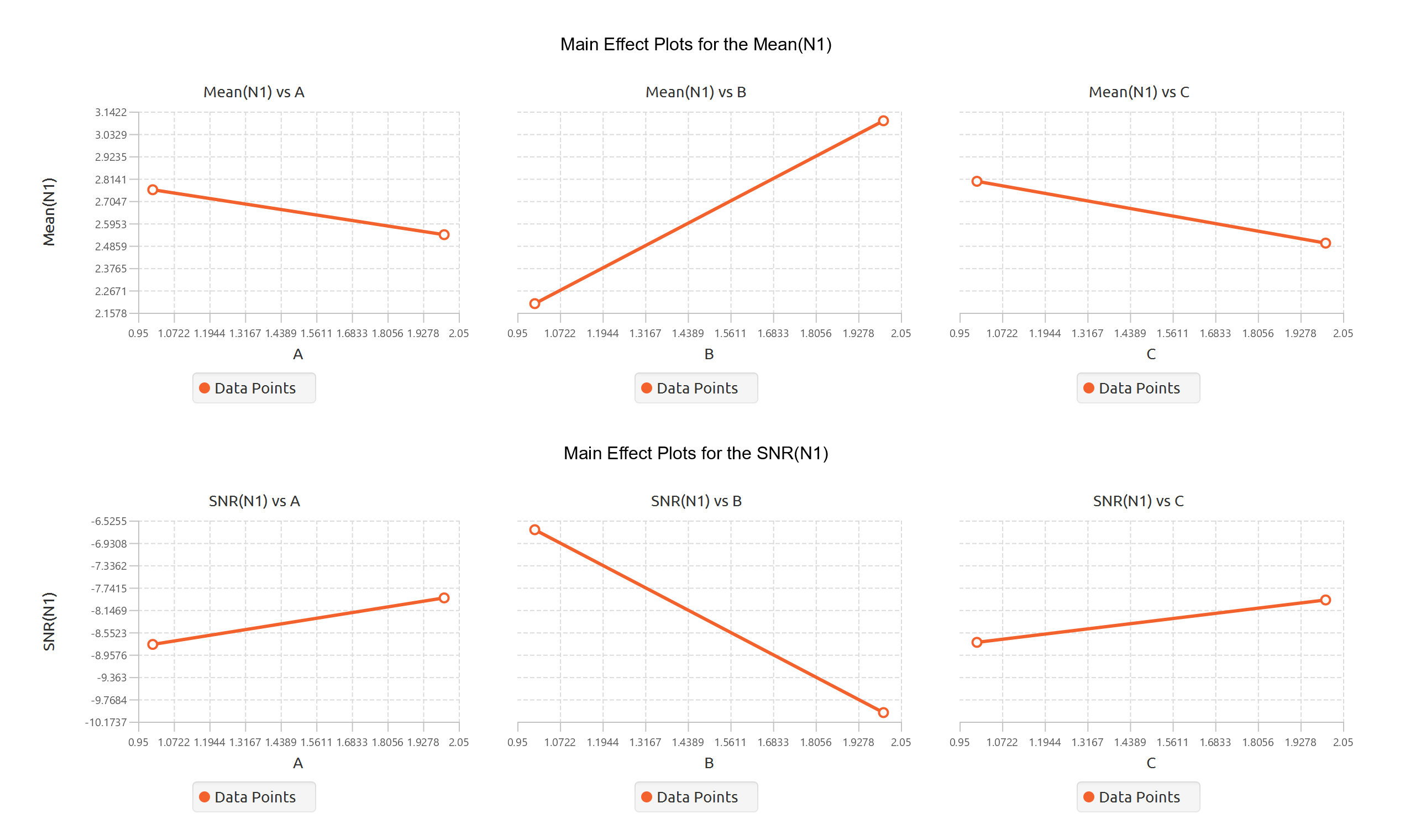
Main Effects Plots
Main Effects Plots display the predicted response for each level of every control factor.
These plots allow identification of factor settings that:
- maximise the mean response,
- minimise variability,
- maximise the signal-to-noise ratio.
All plots within the same response model are displayed using a common y-axis scale to facilitate comparison.
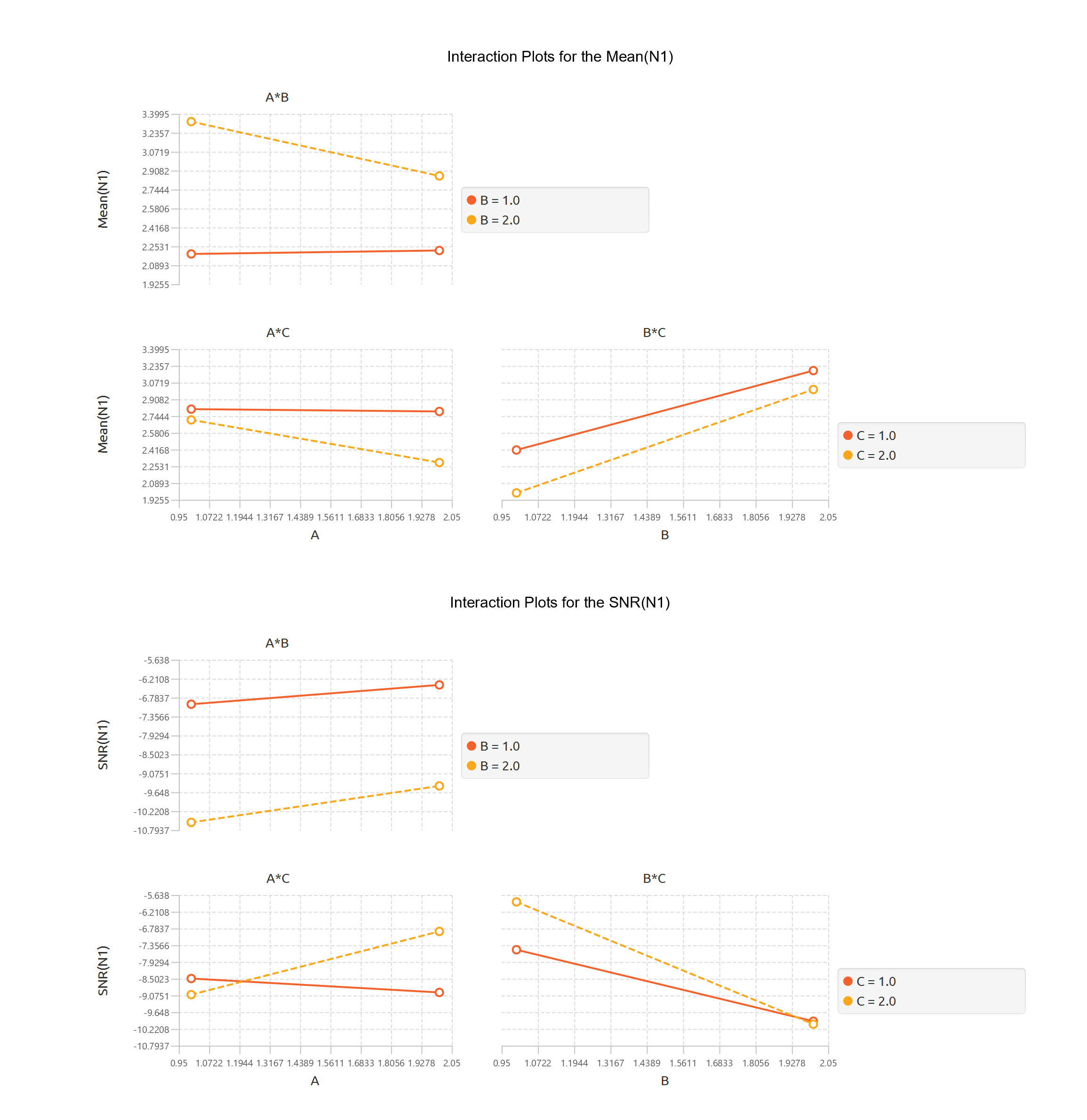
Interaction Plots
Interaction Plots are used to investigate whether the effect of one control factor depends on the level of another factor.
Parallel lines indicate little or no interaction.
Non-parallel or crossing lines suggest the presence of interaction effects.
Strong interactions imply that factor optimisation should consider combinations of factor settings rather than factors individually.
Use the Post-Robust Parameter Analysis tool by browsing in the top ribbon:
| DOE \(\rightarrow\) Post DoE Analysis \(\rightarrow\) Post-Robust Parameter Analysis |
Input
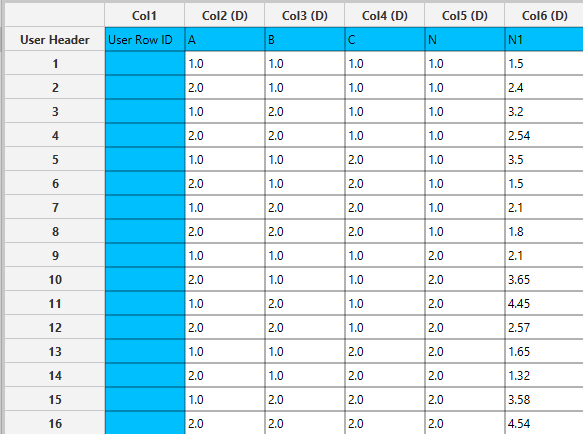
All variables must be specified in the datasheet. The input consists of the results of a Robust Design of Experiment (DoE) together with the measured response values. The response variable must be numerical. At least two Control Factors and one Noise Factor must be specified. Noise Factors may be numerical or categorical and represent sources of variability used to assess robustness.
Configuration
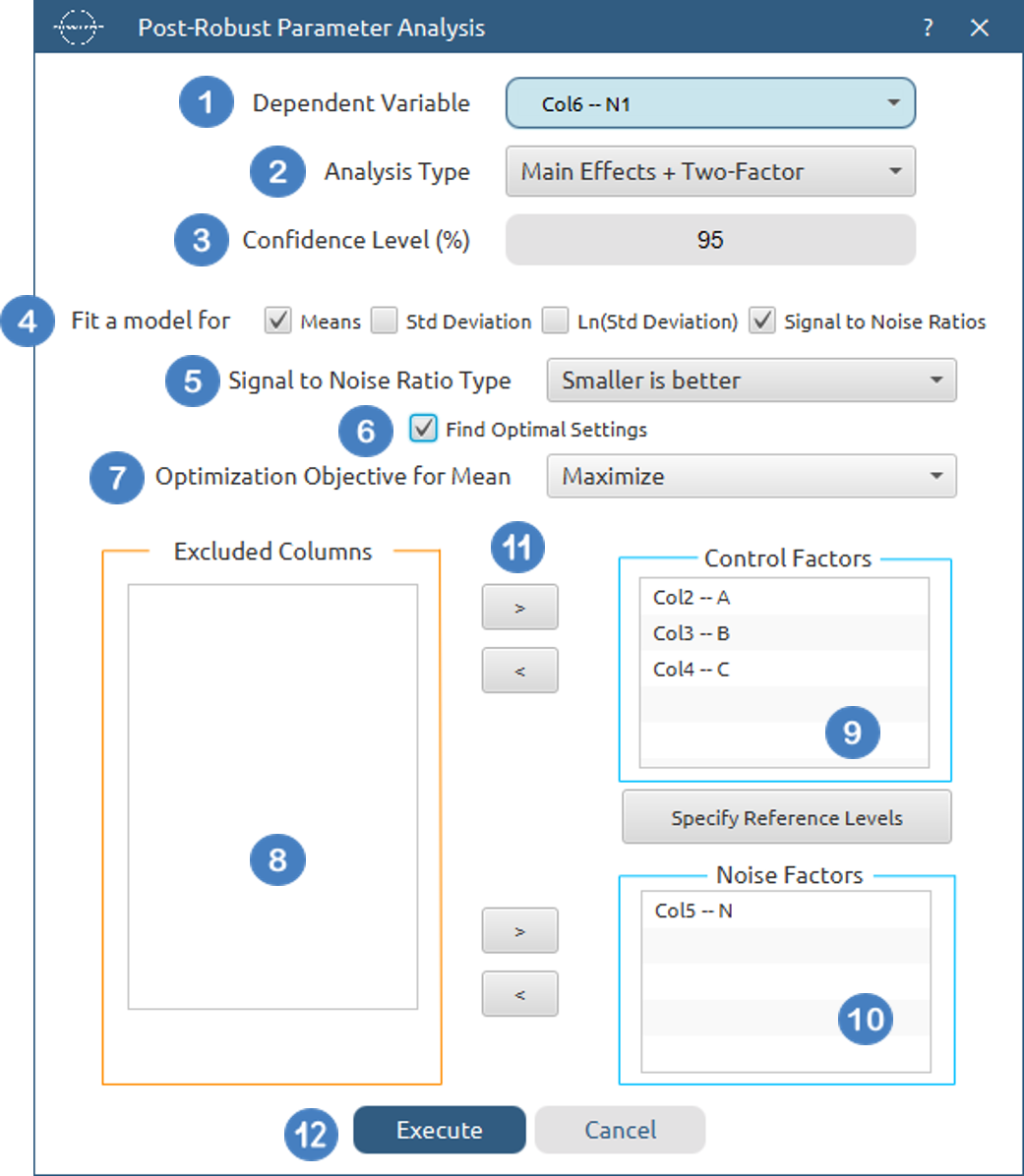
| Dependent Variable | Select the column that corresponds to values of the dependent variable. |
| Analysis Type | Select the desired analysis type for the analysis. Available options include: Main Effects, Main Effects + Two-Factor, Main Effects + Two-Factor + Three-Factor, Full Factorial. |
| Confidence Level(%) | Specify the confidence level for the analysis. Values should range from 0 to 100 with the default value being 95. |
| Fit a model for | Select the statistics you want to fit a model for. At least one option should be selected. |
| Signal to Noise Ratio Type | If the Signal to Noise Ratio model is selected, specify the type of SNR to fit. Available options include: Larger is better, Smaller is better, Nominal is best, Nominal is best (Adjusted), Nominal is best (Variance Only) |
| Find Optimal Settings | Select this button to calculate optimal settings (settings that maximize/minimize the objective) for each of the selected models. |
| Optimization Objective for Mean | If the mean model and the optimization option are selected, select whether the objective is to maximize or minimize the mean. |
| Control Factors/Noise Factors/Excluded Columns | Select manually the columns that correspond to control factors and the columns that correspond to noise factors through the dialog window: Use the buttons to move columns between the Control Factors and Noise Factors lists and Excluded Columns list. Single-arrow buttons will move all selected columns and double-arrow buttons will move all columns. At least two Conrol Factors and one Noise Factor should be specified. |
| Specify Reference Levels | Use this buttton to specify the reference level for each control factor. If this option is not modified, then the last level for each variable will automatically be chosen. |
Output
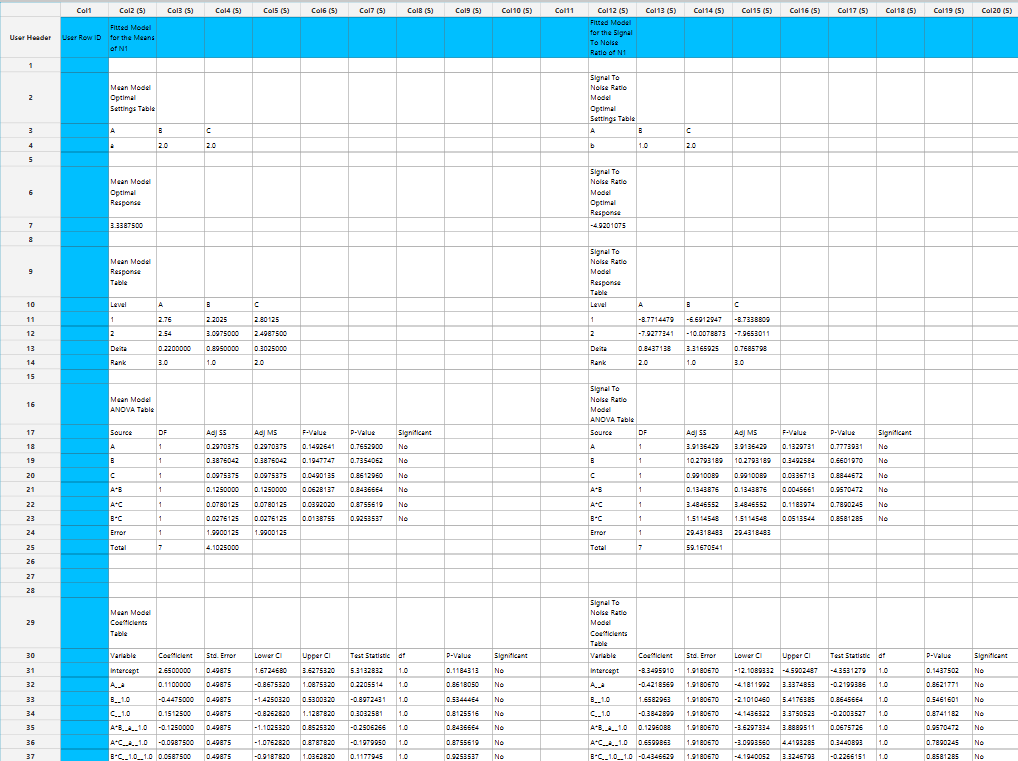
For each selected model, the output spreadsheet contains:
- Response Table : contains the average fitted response for each factor level, delta values and factor rankings
- ANOVA Table : Source, Degrees of Freedom, Sum of Squares, Mean Square, F Statistic, p-value
- Coefficients Table : Variable, Coefficient, Std Error, Lower CI, Upper CI, Test Statistic, df, p-value
In addition, Main Effects Plots and Interaction Plots are generated for each selected robustness metric. Optionally, if the optimization option is selected, the optimal settings and predicted optimal response are shown in the output spreadsheet.
Example
Input
In the input datasheet minimum requirement is to specify four columns, one dependent variable, two control factors and one noise factor, as shown below.
Configuration
- Select
DOE→Post DoE Analysis→Post-Robust Parameter Analysis. - Select the
Dependent Variable[1] from the list of available options. This column should only contain numerical values. - Select the
Analysis Type[2] from the list of available options :Main Effects,Main Effects + Two-Factor,Main Effects + Two-Factor + Three-Factor,Full Factorial. - Specify the
Confidence Level (%)[3] used to calculate confidence intervals. Default value is 0.95. - Select/tick the statistics you wish to
Fit a model for[4]. At least one option must be selected. - If the
Signal to Noise Ratiosoption is selected, select theSignal to Noise Ratio Type[5] from the available options:Larger is better,Smaller is better,Nominal is best,Nominal is best (Variance Only),Nominal is best (Adjusted). - Select/tick to
Find Optimal Settings[6] for each of the fitted models. - If the
Means modelandFind Optimal Settingsoptions are selected select theOptimization Objective for Mean[7]. - Select the columns by clicking on the arrow buttons [10] and moving columns between the
Excluded Columns[8] , theControl Factors[9] andNoise Factors[7] lists. - Optionally
Specify Reference Levels[11] for control factors. - Click on the
Executebutton [12] to perform Post-Robust Parameter Analysis.
Output
The parameter estimates table with all information about the estimated coefficients is shown in the output spreadsheet.
References
- Alkiayat, M., A practical guide to creating a Pareto chart as a quality improvement tool. Global Journal on Quality and Safety in Healthcare, 2021. 4(2): p. 83–84. doi.org/10.36401/JQSH-21-X1.
- Derringer, G., & Suich, R. (1980). Simultaneous Optimization of Several Response Variables. Journal of Quality Technology, 12(4), 214–219. doi.org/10.1080/00224065.1980.11980968
- Cornell, J. (2002) Experiments with Mixtures: Designs, Models, and the Analysis of Mixture. 3rd Edition, John Wiley & Sons, Inc., New York. doi.org/10.1002/9781118204221
Version History
Introduced in Isalos Analytics Platform v0.2.4
Instructions last updated on June 2026